













Credit: Shutterstock
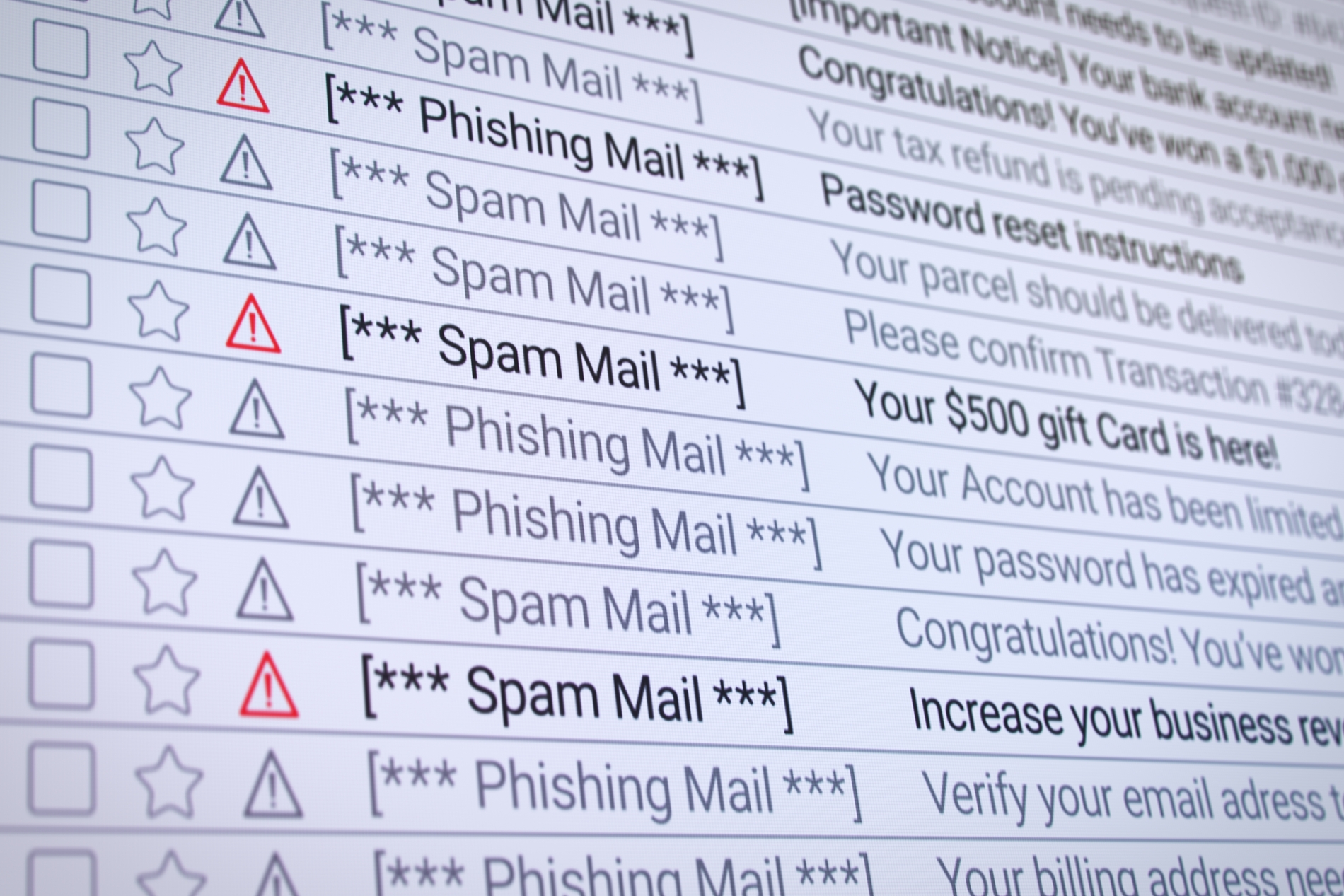
In 2026, phishing emails don’t look like phishing emails anymore. The old tricks we all learned, like spotting wrong spelling and weird greetings, barely work today.
Microsoft’s threat team detected around 8.3 billion phishing emails in just the first three months of 2026, and over 82% of them were written by AI tools. These emails were grammatically clean, personalized, and often referenced real things, like the prospect’s job title, manager’s name, or even a project they’re working on.
It means if you’re still relying on your gut to catch fakes, you’re playing a game the scammers have already won.
So we need a new playbook, and here it is.
The 3 New Tricks Scammers Are Using in 2026
1. AI-written emails
Scammers feed your LinkedIn profile, your company website, and your social posts into an AI tool. Within minutes, they get back a message that mentions almost everything about you. And then they use those details to write phishing emails.
However, you can still catch them. These emails will sound extra polished and might contain Em dashes (—). The tone might feel slightly off, like a coworker who suddenly writes like a lawyer. Or the request might feel a bit forced, with lines like “as we discussed earlier” when you don’t actually remember discussing anything.
2. QR code phishing (Quishing)
This one exploded in 2026. Microsoft saw QR code phishing attacks more than double between January and March 2026, jumping from around 7.6 million attacks to 18.7 million in just two months.
Here’s how it works. You get an email with a QR code, often pretending to be a multi-factor authentication setup, a parcel delivery, or an HR document. You scan it with your phone. The QR code sends you to a fake login page on your mobile device, which usually has weaker security than your work computer.
To save yourself from Quishing, never scan a QR code from an email. There is almost no legitimate reason a real company would send one.
3. Dangerous file attachments
Attackers might send an SVG file covered as a PDF, which can run malicious code when you open it.
Watch out for these file types arriving as attachments:
- .svg files pretending to be PDFs or images
- .html files that open a fake login page right inside your browser
- .zip, .rar, or .7z files asking you to “unlock” a document
- .docx or .xlsm files that ask you to “Enable Editing” or “Enable Macros.”
If you weren’t expecting a file, don’t open it. That is the safest approach.
The Basic Red Flags and How To Spot Them
Even with all the AI upgrades, scam emails still leave fingerprints. You just have to know where to look.
Check the sender’s email address, not the display name
The “From” name might say “Apple Support”. The actual email could be apple-support@strange-domain.xyz. Display names are easy to fake. The real email address is harder.
On Gmail, tap or click the sender’s name to see the full address. On Outlook, hover over the name. On a phone, tap the sender to expand the details. Look for:
- Misspelled domains such as paypa1.com, arnaz0n.com, microsft.com, etc.
- Public email services pretending to be companies: apple.support.team@gmail.com
- Subdomains that look real but aren’t: apple.com.security-update.net (the real domain is the last part, security-update.net)
Hover over links before you click them
On a desktop, hover your mouse over any link in the email. The real URL pops up at the bottom of your screen or in a small tooltip. If the email says “Sign in to your bank,” but the link points to bank-security-check.ru, never open it.
On a phone, press and hold the link (don’t tap). A preview should appear with the actual destination.
If you see link shorteners like bit.ly, tinyurl.com, or t.co in an email about your money or account, treat it as suspicious. Legitimate banks never hide their links.
The urgency trap
“Your account will be closed in 24 hours.” “Pay this invoice today.” “Action required: confirm now.”
This is the oldest trick, and it still works because it creates panic. Real companies almost never give you a tight deadline like this.
Generic greetings
“Dear Customer,” “Dear User,” “Hello Account Holder.” Your bank, Amazon, or Netflix knows your name. If someone is being weirdly impersonal, be careful.
The “wrong inbox”
If a bank alert arrives in the mailbox you only use for shopping or a work HR memo arrives at your personal Gmail, that is a mismatch and is enough to delete the email.
Requests that don’t fit the relationship
Your CEO has never emailed you directly. Suddenly, you get an “urgent” email from them asking you to buy gift cards. Your aunt, who texts you in lowercase, suddenly sends a formal email asking for a money transfer.
If the request doesn’t match how that person normally talks to you, it’s a scam. Trust that gut feeling.
The Bottom Line
In 2026, to be safe, trust less, verify more.
Don’t trust the sender’s name. Trust the email address. Don’t trust the link’s text. Trust where it actually goes. Don’t trust urgency. Trust your own pace.
The scammers got smarter, so our habits just need a small upgrade to stay ahead. That’s it. That’s how you stay safe.