


















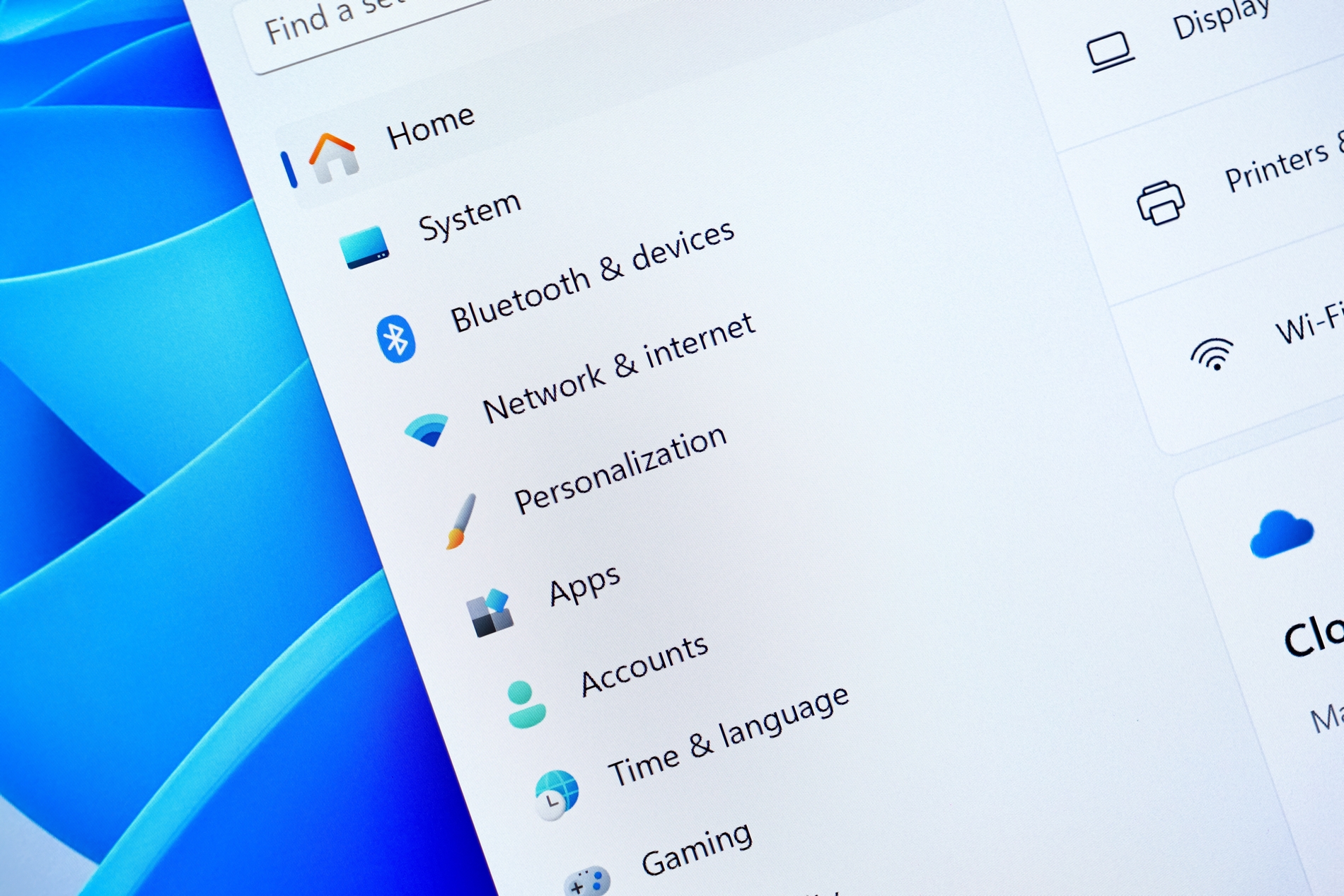
Credit: Shutterstock
It’s annoying when your devices won’t connect to your computer because Bluetooth isn’t working.
Bluetooth issues on Windows usually fall into one of four buckets:
- The device itself has a problem
- A system setting silently blocked it
- The background service that runs Bluetooth has crashed
- The driver is outdated.
The fixes below go in order from easiest to slightly more involved. Try each one, and stop when your Bluetooth works.
Fix 1: Start With the Device, Not Your PC
Before touching any Windows settings, rule out the Bluetooth device itself.
Make sure the device is powered on, not just charged. Many Bluetooth headphones, mice, and keyboards have a physical power button that is separate from the charging port. Check that the battery is not dead. If the device uses replaceable batteries, swap them. Confirm the device is within 30 feet of your PC with no thick walls or other USB 3.0 devices (hard drives, USB hubs) sitting directly between them, as these are known to cause interference.
Most importantly, check that the device is in pairing mode. You can put it into pairing mode by holding down a dedicated Bluetooth button for 3 to 5 seconds until the LED flashes rapidly. Every device is different, so check your product manual if unsure. A device that is already paired to a phone, for example, will not connect to Windows unless you manually switch it.
If none of this is the issue, move to the PC side.
Fix 2: Make Sure Airplane Mode is Off
Airplane Mode disables your PC’s wireless radios entirely, including Bluetooth. It is easy to accidentally turn on the Airplane Mode, especially on laptops.
On Windows 11: Press Windows key + A to open Quick Settings. If the Airplane mode button is highlighted or labeled “On,” click it to turn it off.
On Windows 10: Press Windows key + A to open Action Center. If the Airplane mode tile is highlighted, click it to turn it off. Alternatively, go to Start > Settings > Network & Internet > Airplane mode and make sure the toggle is set to Off.
Fix 3: Toggle Bluetooth Off and On, Then Restart Your PC
A simple toggle clears many temporary glitches.
On Windows 11: Go to Start > Settings > Bluetooth & devices. Turn the Bluetooth toggle off, wait 10 seconds, then turn it back on.
On Windows 10: Go to Start > Settings > Devices > Bluetooth & other devices. Turn the Bluetooth toggle off, wait 10 seconds, then turn it back on.
After toggling, restart your PC completely (not just sleep or hibernate). Go to Start > Power > Restart. A full restart reloads all Bluetooth-related services from scratch.
Fix 4: Remove the Device and Re-Pair It
If Bluetooth is on but a specific device will not connect, the existing pairing record is likely corrupted. Deleting it and starting fresh almost always resolves this.
On Windows 11: Go to Start > Settings > Bluetooth & devices > Devices. Find the device that is not connecting, click the three-dot menu icon next to it, and select Remove device, then confirm with Yes.
On Windows 10: Go to Start > Settings > Devices > Bluetooth & other devices. Click the device that is not connecting and select Remove device, then confirm with Yes.
After removing it, put your Bluetooth device back into pairing mode (see Fix 1 above), then add it again by clicking Add device (Windows 11) or Add Bluetooth or other device (Windows 10) and selecting your device from the list.
Fix 5: Run the Built-In Bluetooth Troubleshooter
Windows includes an automated Bluetooth repair tool that can catch and fix issues you might miss manually. It is not magic, but it is a legitimate first-line diagnostic from Microsoft.
On Windows 11: Go to Start > Settings > System > Troubleshoot > Other troubleshooters. Find Bluetooth in the list and click Run. Follow the on-screen instructions.
On Windows 10: Go to Start > Settings > Update & Security > Troubleshoot > Additional troubleshooters. Click Bluetooth, then click Run the troubleshooter. Follow the on-screen instructions.
The troubleshooter will either fix the issue automatically or tell you what it found.
Fix 6: Restart the Bluetooth Support Service
Windows runs a background process called Bluetooth Support Service that handles all Bluetooth communication. If this service stops or crashes, Bluetooth may disappear entirely from your settings, or devices may refuse to connect even when Bluetooth appears to be on.
- Press Windows key + R to open the Run dialog box.
- Type services.msc and press Enter. The Services window will open.
- Scroll down to find Bluetooth Support Service in the list.
- Right-click it and select Restart.
- If Restart is grayed out (meaning the service was not running), select Start instead.
To prevent this from happening again, double-click Bluetooth Support Service to open its properties. Click the Startup type dropdown and change it to Automatic. Click Apply, then OK.
Fix 7: Update Your Bluetooth Driver
An outdated or corrupted Bluetooth driver is one of the most common causes of persistent Bluetooth failures, especially after a Windows update. To fix it:
- Press Windows key + X and select Device Manager.
- Click the arrow next to Bluetooth to expand the section.
- Right-click the Bluetooth adapter listed there. It will have a name like Intel(R) Wireless Bluetooth(R), Realtek Bluetooth Adapter, or a similar name. Right-click it and select Update driver.
- Select Search automatically for updated driver software. Windows will check for online updates and install any available updates.
- If Windows says the driver is already up to date, but Bluetooth is still broken, go to your PC manufacturer’s website (Dell, HP, Lenovo, ASUS, etc.), search for your laptop model, and download the latest Bluetooth driver manually from their support page. Run the downloaded file to install it.
- After the driver updates, go to Start > Power > Restart to apply the changes.
Review: Which Fix for Which Problem
| Your Symptom | Start With |
| Bluetooth is on, but the device won’t connect | Fix 1 and Fix 4 |
| Bluetooth toggle is missing from Settings | Fix 6, then Fix 7 |
| Bluetooth worked before a Windows update | Fix 7 |
| Bluetooth turns on but finds no devices | Fix 1, Fix 4, Fix 5 |
| Nothing works at all | Try all fixes in order |