

























Credit: Shutterstock
A safe iOS 27 update starts before you tap Download and Install.
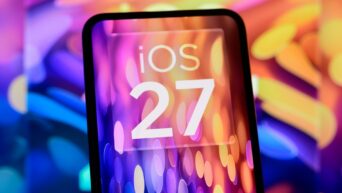
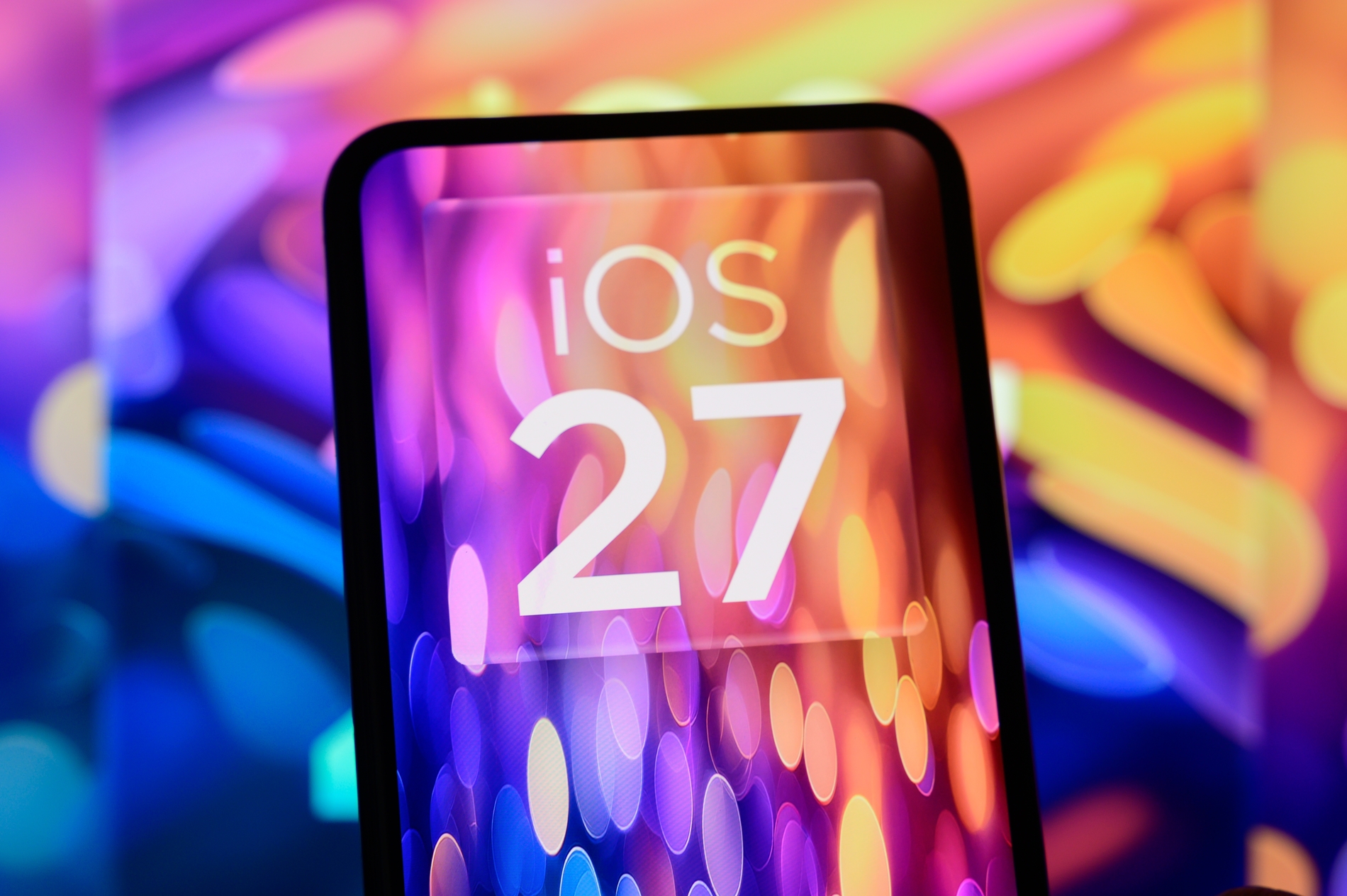
Apple released iOS 27 on September 14, 2026. The update includes security fixes, performance improvements, interface changes, and new features. However, major system updates can take time, use considerable storage, and temporarily cause faster battery drain.
This guide explains how to prepare your iPhone, install iOS 27 safely, and handle the background optimization that happens afterward.
1. Confirm That Your iPhone Supports iOS 27
iOS 27 supports the following iPhones:
- iPhone 11 series and newer models
- iPhone SE, 2nd generation
- iPhone SE, 3rd generation
- iPhone Air
- iPhone 18 Pro and iPhone 18 Pro Max
You can find the full list here: iOS 27 compatibility list.
2. Update Your Apps First
Updating your apps before installing iOS 27 isn’t mandatory, but it’s a sensible step. Updated app versions may include compatibility fixes for iOS 27.
To update your apps:
- Open the App Store.
- Tap your profile picture in the upper-right corner.
- Scroll down to view available updates.
- Tap Update All.
- Wait for apps to finish updating.
Pay particular attention to banking, authentication, work, health, accessibility, and password-management apps. If you depend on an app for critical tasks, check the developer’s support information to confirm it supports iOS 27 before installing. After updating your apps, restart the iPhone if any app behaves unexpectedly.
3. Back Up Your iPhone
Do not install a major system update without a recent backup. An iOS update should preserve your data, but a backup protects you if the installation fails or the device develops another problem.
Back up with iCloud
- Connect the iPhone to Wi-Fi.
- Open Settings.
- Tap your name.
- Tap iCloud.
- Tap iCloud Backup.
- Tap Back Up Now.
- Remain connected to Wi-Fi until the backup finishes.
Check the date and time shown under Back Up Now. It should confirm that the latest backup has completed.
If you do not have enough iCloud storage, you can remove unneeded backup data, increase your iCloud storage, or create a backup on a Mac or Windows PC.
4. Check Your Available Storage
The required storage depends on your iPhone, current iOS version, and the specific iOS 27 build being installed. No single storage figure applies to every device. However, we recommend 15 GB of free space.
To check your available storage:
- Open Settings.
- Tap General.
- Tap iPhone Storage.
- Wait for the storage information to load.
If storage is nearly full, remove downloaded videos, large message attachments, or other files you no longer need. You can also use Offload Unused Apps, which removes an app but keeps its documents and data.
During an update, iOS may offer to remove some apps temporarily. If you approve this option, the system should reinstall those apps after the update. A completed backup is still important.
Update your apps before making the final storage check because app updates can change the amount of free space.
5. Use a Fast and Stable Wi-Fi Connection
Connect the iPhone to a reliable Wi-Fi network before downloading iOS 27. A major update can be several gigabytes, and an unstable connection can interrupt or delay the download.
For the best results:
- Use a private home or office network that you trust.
- Stay close to the Wi-Fi router.
- Avoid downloading large files on other devices at the same time.
- Do not switch between Wi-Fi networks during the download.
- Avoid public networks that require repeated sign-ins.
- Temporarily disconnect a VPN or proxy if the iPhone cannot contact Apple’s update servers.
6. Connect the iPhone to Power
Plug the iPhone into a reliable power source before starting the installation. Keep it connected until the update is complete.
You do not need to charge the battery to exactly 100% first. A safer approach is to start with a reasonable charge and keep the iPhone connected to power throughout the process.
Place the iPhone in a cool, ventilated location while it updates. Do not cover it with bedding or leave it in direct sunlight. If the phone is already unusually hot, let it cool before you begin.
7. Install iOS 27
When the backup, app updates, storage check, Wi-Fi connection, and power connection are ready, follow these steps:
- Open Settings.
- Tap General.
- Tap Software Update.
- Wait while the iPhone checks for updates.
- Review the version and update information.
- Tap Download and Install or Update Now.
- Enter your passcode if requested.
- Accept the terms and follow the on-screen instructions.
If both an iOS 26 update and an iOS 27 upgrade appear, scroll down and select the iOS 27 option.
The iPhone may restart several times. The Apple logo and a progress bar can remain on the screen for an extended period. The total time depends on the download, the iPhone model, and the amount of data stored on the device.
Don’t unplug the iPhone or force-restart it just because the progress bar looks slow. Apple says update progress can vary based on update size and available storage.
8. Check the iPhone After the Update
After the iPhone restarts:
- Unlock it and complete any setup prompts.
- Open Settings.
- Tap General, then About.
- Confirm that the iOS version begins with 27.
- Test Wi-Fi, cellular service, calls, messages, the camera, and Bluetooth.
- Open the apps you rely on most.
- Return to the App Store and check for additional app updates.
Some app developers release compatibility updates shortly after a new iOS version becomes available, so another app update check is worthwhile.
Also open Settings, select General, and tap Software Update again. Install any newer iOS 27 maintenance or security update that Apple offers for your device.
9. Allow a Few Days for Background Optimization
Your iPhone is ready to use when the installation finishes, but some update-related work continues in the background. This can include indexing files for search, updating app data, downloading system assets, and analyzing content.
During this period, you may notice:
- Faster battery drain
- Heating issues
- Slower performance
- Increased background activity
- Apps taking longer to finish setup
Apple recommends waiting a few days before deciding that an update has caused a battery problem. You may see an Ongoing iOS Update message under Settings > Battery while background work continues.
3 days is a checkpoint, but it is not a guaranteed optimization period. Some iPhones finish sooner, while devices with large photo libraries or extensive app data may take longer.
Use the iPhone normally during this time. Keeping it connected to power and Wi-Fi overnight can give background processes time to finish. Avoid repeatedly restarting the device unless it is unresponsive or a troubleshooting step requires it.
If battery life is still much worse after several days, check Settings > Battery to identify unusually active apps. Then update those apps, restart the iPhone once, and check for another iOS 27 update.
Final Safety Checklist
Before installing iOS 27, confirm that:
- Your iPhone supports iOS 27.
- Your important apps are updated.
- Your backup has completed successfully.
- The iPhone has enough available storage.
- You are connected to reliable Wi-Fi.
- The iPhone is connected to power.
- You have enough time to let the installation finish without interruption.
After installation, allow a few days for background work to settle before judging battery life or performance. If serious problems remain after that period, install any available iOS 27 update or contact Apple Support.