





























Credit: Shutterstock
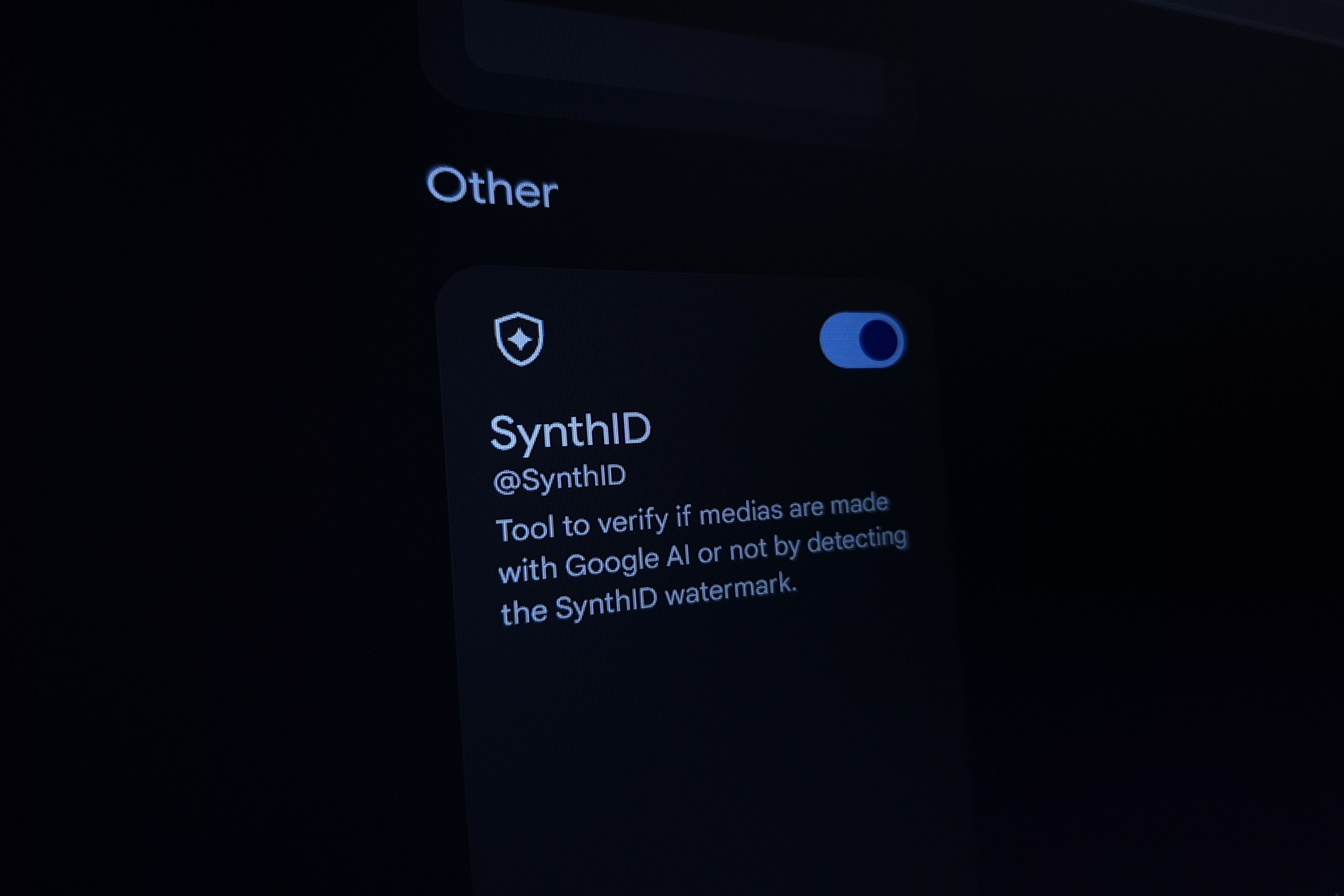
Google has made its AI watermark detector free for everyone, and it takes less than a minute to detect.
With AI-generated images, videos, and audio flooding the internet, it’s become hard to tell whether a piece of media is AI-generated. Google’s SynthID Detector, now available to anyone at synthid.com, gives you a quick way to check. But it works differently than many people expect, and understanding that difference matters.
What SynthID Actually Is
SynthID is a watermarking system that Google DeepMind introduced in 2023. When AI tools that support SynthID generate an image, video, or audio file, they embed an invisible watermark directly into that media. The watermark is designed to survive light editing, resizing, and compression.
SynthID Detector checks whether that watermark is present in a file you upload. It doesn’t analyze visual patterns or look for signs of AI-generated artifacts the way a general AI detector tries to. It simply looks for the watermark.
Google released SynthID Detector to everyone globally in English on October 7, 2026, after an earlier rollout limited to journalists and researchers. Beyond Google’s own AI models, the tool now detects watermarks from partners OpenAI, NVIDIA, and Kakao, with Apple announced as a future addition.
How to Use Google’s SynthID Detector
Step 1: Go to synthid.com
Open your browser and go to synthid.com. The site is free to use.
Step 2: Sign in
You need to be logged in to either a Google, OpenAI, or Apple account to use SynthID Detector.
Step 3: Upload your file
Upload the file you want to check. The portal supports files up to 100MB. Here’s what it accepts:
- Images: JPG, JPEG, PNG, BMP, WEBP, AVIF, HEIC, HEIF, TIFF, GIF
- Video: MP4, MOV, WEBM
- Audio: WAV, MP3, OGG, FLAC, AAC, M4A
Use the original file whenever possible. A heavily compressed or re-saved version may affect the result.
Step 4: Read the result
The scan takes a few seconds. You’ll get one of two outcomes: the watermark was detected, or it wasn’t. Users are reportedly limited to around 10 checks per day.
What the Results Mean
1. If SynthID is detected
The file contains a recognized watermark. The site can correctly identify whether an image was created by OpenAI (ChatGPT) or Google AI (Gemini). In some cases, the tool can show whether the watermark covers the entire file or only specific portions, which is useful when a file mixes AI-generated and human-created content.
2. If SynthID is not detected
This does not mean the file is real or human-made. A positive result means the tool detected a supported watermark signal. “No supported signal detected” means the tool did not find a SynthID signal it recognizes, not that a person made the file or that it contains no AI-generated material. This is the most important thing to understand about SynthID Detector.
What It Cannot Do
SynthID Detector is not an AI detection tool. It detects the watermark that certain AI models embed in AI-generated media. If you upload AI-generated content without the SynthID watermark, SynthID Detector cannot help you determine whether the media is AI-generated.
A few practical limitations to keep in mind:
- It can’t detect media made with AI models that don’t use SynthID, such as Meta’s tools.
- The public site has no text option, even though SynthID also covers Gemini text.
- Low resolution, video below 10 frames per second, heavy tampering, or minor AI edits can also leave a scan inconclusive.
- Google admits that SynthID can be circumvented, particularly in the case of text.
Because it only checks for its own specific watermark, SynthID Detector should produce very few false positives. The trade-off is that it will miss a lot of AI content that simply wasn’t watermarked with SynthID.
For checking text, you’ll need a separate general-purpose AI text detector, since SynthID Detector doesn’t cover that.