




























Credit: Shutterstock
Apple Intelligence can use several gigabytes of storage, even if you rarely use it.
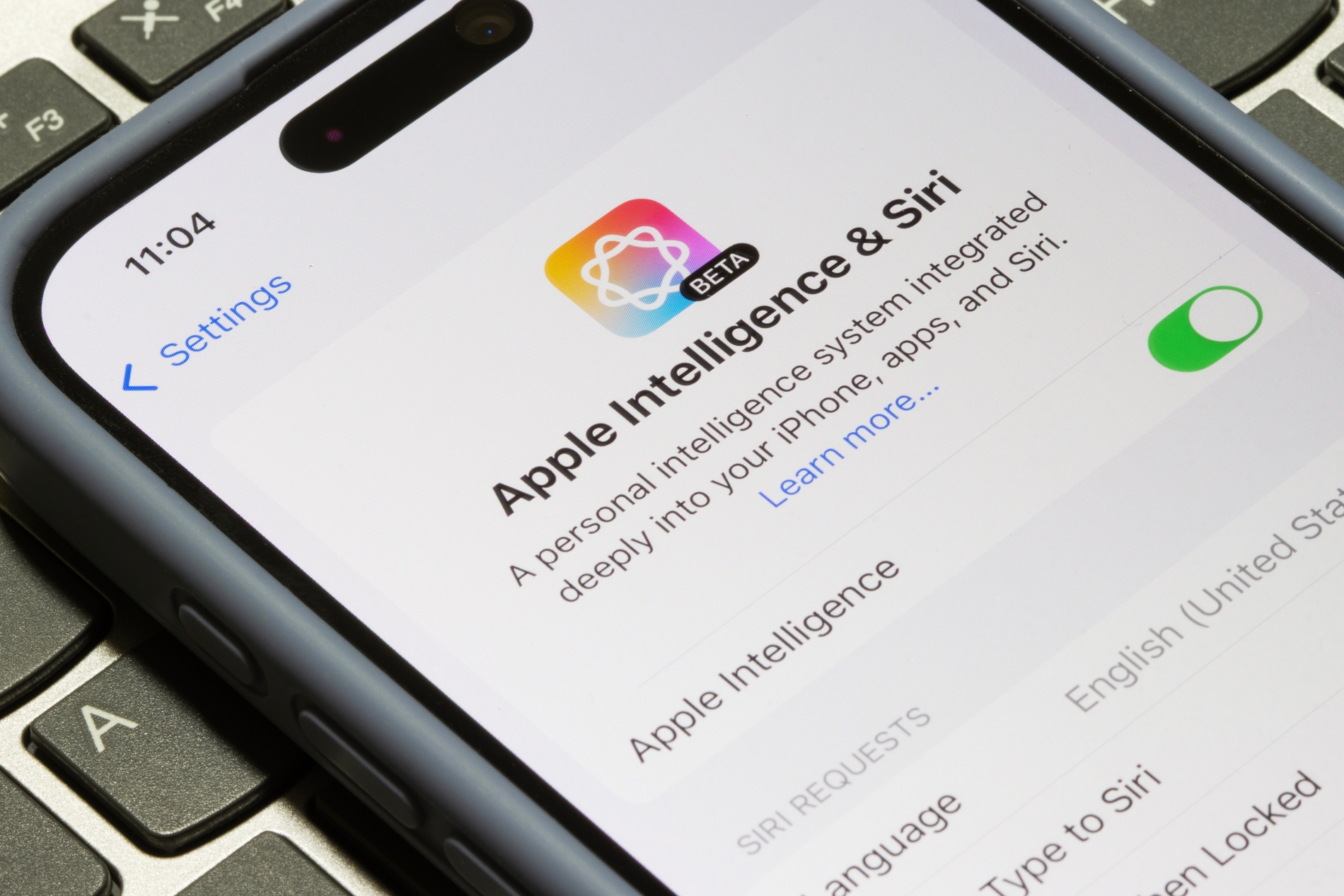
Apple launched iOS 27 and macOS 27 in September, bringing a new version of Siri AI powered by Apple Intelligence. The updated Siri handles many tasks better, but Apple Intelligence also relies on LLMs stored directly on your device.
Apple says the latest Apple Intelligence features can require up to 14GB of device storage on some supported devices and up to 8GB on others.
If you do not use these AI features, you can turn many of them off. However, iOS 27 and macOS 27 no longer offer the same simple master Apple Intelligence switch as earlier versions. You now have to disable Siri AI and several other features individually.
Here is how to do it.
How to turn off Siri AI on iPhone
You can disable Siri completely or switch back to Siri Classic without the newer Siri AI features.
- Open Settings on your iPhone.
- Tap Siri.
- Scroll down and tap Turn Off Siri.
- Tap Turn Off Siri again to confirm.
If you still want to use Siri without Siri AI, tap Turn On Siri afterward and select Siri Classic.
Turn off other Apple Intelligence features on iPhone
Disabling Siri AI does not necessarily turn off every Apple Intelligence feature. You can disable the ones you do not use separately.
For example:
- To disable notification summaries, go to Settings > Notifications > Summarize Notifications, then turn off Summarize Notifications.
- To disable priority notifications, go to Settings > Notifications > Prioritize Notifications.
- To disable Messages summaries, go to Settings > Apps > Messages, then turn off Summarize Messages.
- To disable Mail summaries, go to Settings > Apps > Mail, then turn off Summarize Message Previews.
- To disable personalized Smart Replies, go to Settings > Apps > Mail, then turn off Personalize Smart Replies.
- To disable voicemail suggestions, go to Settings > Apps > Phone, then turn off Suggestions in Voicemail.
- To disable Journal writing prompts, go to Settings > Apps > Journal, then turn off Get Writing Prompts.
You can also restrict several AI capabilities from one place. Go to Settings > Screen Time > Content & Privacy Restrictions > Siri. From there, you can switch to Siri Classic, block Siri entirely, or block specific capabilities such as image creation and AI extensions.
How to turn off Siri AI on Mac
The process is similar on macOS 27.
- Open System Settings.
- Select Siri in the sidebar.
- Click Turn Off Siri.
- Click Turn Off Siri again to confirm.
To keep the older Siri, turn Siri back on and select Use Siri Classic.
Turn off other Apple Intelligence features on Mac
Several Apple Intelligence features have their own switches on macOS 27.
To disable Messages summaries, open Messages, choose Messages > Settings, and turn off Summarize Messages.
For Mail, open Mail > Settings. Under Viewing, turn off Summarize Message Previews. You can also open the Composing section and turn off Personalize Smart Replies.
For notification summaries, open System Settings > Notifications > Summarize Notifications, then turn the feature off.
If you use Journal, open Journal > Settings > General and turn off Get Writing Prompts.
Will turning off Apple Intelligence actually free storage?
Yes, but how much space you recover depends on your device and operating system.
On iPhone, disabling Apple Intelligence or Siri AI can free up a few gigabytes of storage. The same is true on macOS 26, where turning off Apple Intelligence can free up space used by its on-device AI models.
macOS 27 is less straightforward because it lacks a simple Apple Intelligence switch. Disabling individual features may not remove all of the downloaded AI data. In testing, changing Siri to an unsupported language freed about 4GB, but other methods were less reliable.
You should not expect to recover every gigabyte occupied by Apple Intelligence. Check your device storage before and after making the changes to see how much space you actually get back.