

























Credit: Shutterstock
Not every computer supports Windows 11 by default. See if yours does.
Windows 10 support ended on October 14, 2025. Microsoft no longer provides security updates, bug fixes, or technical assistance for it. Your PC will still work, but staying on Windows 10 means your computer is no longer protected against modern security threats. Updating to Windows 11 is strongly recommended, and for most modern PCs, it’s free.
Before you upgrade, though, you need to make sure your PC actually supports Windows 11. The good news is that checking takes less than five minutes. Let see how.
Method 1: Use Microsoft’s PC Health Check App (Easiest)
This is the official tool from Microsoft and the simplest way to get a clear YES or NO answer.
- Download the PC Health Check app from Microsoft’s website and open the downloaded file.
- Agree to the terms of service, click Install, check the “Open PC Health Check” box, then click Finish.
- The app opens to a page that says “PC health at a glance.” At the top, click the Check now button inside the “Introducing Windows 11” box.
- Within seconds, you’ll get your result.
If your PC is compatible, you can download Windows 11 for free through Windows Update. If it isn’t, the app will tell you exactly which requirement your PC is missing so you won’t be left guessing.
Note: The PC Health Check app had a rough start when Windows 11 was first announced — early versions didn’t explain clearly why a PC was ineligible, so Microsoft temporarily pulled it. The current version is fully fixed and reliable.
Method 2: Use the WhyNotWin11 App to Get More Details
If you want a deeper breakdown of exactly what’s holding your PC back, WhyNotWin11 is a free alternative. It’s an open-source app built by an independent developer (not affiliated with Microsoft), available on GitHub. You can use it on your own responsibility.
The interface is a bit more technical-looking, but it displays a full checklist of Windows 11 requirements and clearly marks which your PC passes and which it fails. This is especially useful if the PC Health Check app gives you a vague result and you want to know precisely what needs to change.
Method 3: Check Your PC’s Specs Manually
If you prefer to look it up yourself, you can compare your PC’s hardware with Microsoft’s official minimum requirements. To quickly find your PC’s specs, press Windows key + R, type msinfo32, and press Enter.
Here’s what Windows 11 requires. Compare it with your PC specs:
| Requirement | Minimum |
| Processor | 1GHz or faster, 2 or more cores, 64-bit compatible |
| RAM | 4GB |
| Storage | 64GB or larger |
| System firmware | UEFI, Secure Boot capable |
| TPM (security chip) | Trusted Platform Module version 2.0 |
| Graphics card | DirectX 12 compatible, WDDM 2.0 driver |
| Display | HD (720p), larger than 9 inches diagonally |
| Internet & account | Internet connection + Microsoft account (required for Home edition setup) |
Note: The two requirements that catch most people off guard are TPM 2.0 and Secure Boot. These are security features built into most PCs made after 2017, but they are sometimes turned off by default. If your PC has them but they’re disabled, you may be able to turn them on in your BIOS settings.
What If My PC Isn’t Eligible?
You have a few options in this unfortunate condition:
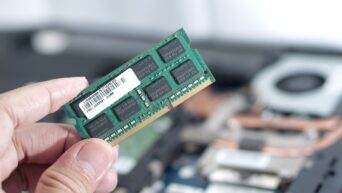
1. Upgrade your hardware: In some cases, small changes can make your PC eligible, such as adding more RAM or enabling Secure Boot and TPM 2.0 in your BIOS settings. A local technician can help if you’re not comfortable doing this yourself.
2. Buy a new PC: If your computer is more than 5 or 6 years old, a new device may be a more practical and cost-effective option. Every new Windows PC sold today comes with Windows 11 pre-installed and is built to run it well for years to come.
3. Bypass the requirements (not recommended): Workarounds do exist that let you force-install Windows 11 on unsupported hardware, but Microsoft strongly discourages this. Doing this can cause slower performance, frequent crashes, and, most importantly, exclusion from future security updates.
Still Not Getting Windows 11 Update After Upgrading PC Hardware?
If you are using Windows 10 and recently made changes to your PC, such as adding more RAM or enabling Secure Boot and TPM 2.0 to get the Windows 11 update officially, but haven’t received it yet, your concern is understandable. Your system’s eligibility may have changed, but it may not reflect immediately.
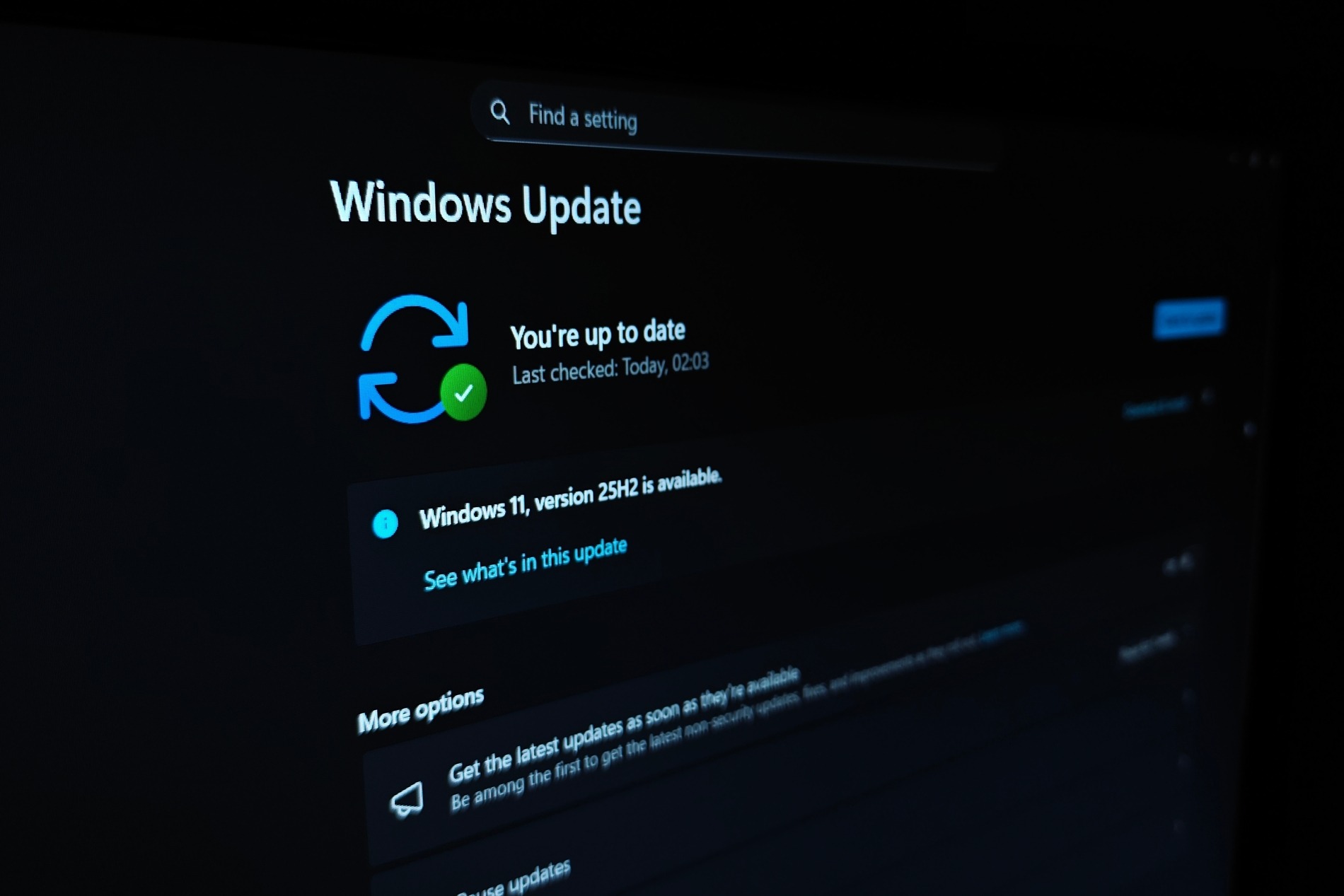
First, re-run the PC Health Check app and click Check now again. Keep in mind that it can take up to 24 hours for Windows Update to reflect hardware changes. If it hasn’t updated even after 24 hours, you can trigger a manual refresh using one of the two methods below.
Option A: Refresh Using Task Scheduler
- Right-click the Start menu and select Search.
- Type task scheduler and open Task Scheduler from the results.
- In the left panel, navigate to: Task Scheduler Library → Microsoft → Windows → Application Experience.
- Right-click on Microsoft Compatibility Appraiserand select Run.
- Wait until the Status column shows Ready. Click Action → Refreshin the top menu to update the status.
If you see the message “The user account does not have permission to run this task,” use Option B below or sign in with an administrator account.
Option B: Refresh Using Command Prompt (Administrator)
- Right-click the Start menu and select Search.
- Type cmd, then on the right side of the results, click Run as administratorunder Command Prompt.
- If prompted by User Account Control, click Yes, or enter an administrator username and password.
- In the black window, paste the following command exactly and press Enter:
schtasks.exe /Run /TN “\Microsoft\Windows\Application Experience\Microsoft Compatibility Appraiser”
- Wait a few minutes for the task to complete.
After refreshing, go to Start → Settings → Update & Security → Windows Update and click Check for updates to see your updated eligibility.
Microsoft rolls out the upgrade gradually, based on factors like device age, hardware eligibility, and reliability data. The wait is typically short. Hopefully, you will now be able to use and enjoy Windows 11 on your systems!